
After a shoot, it's all about reducing hundreds or thousands of images. Phiewer Select is built exactly for that.

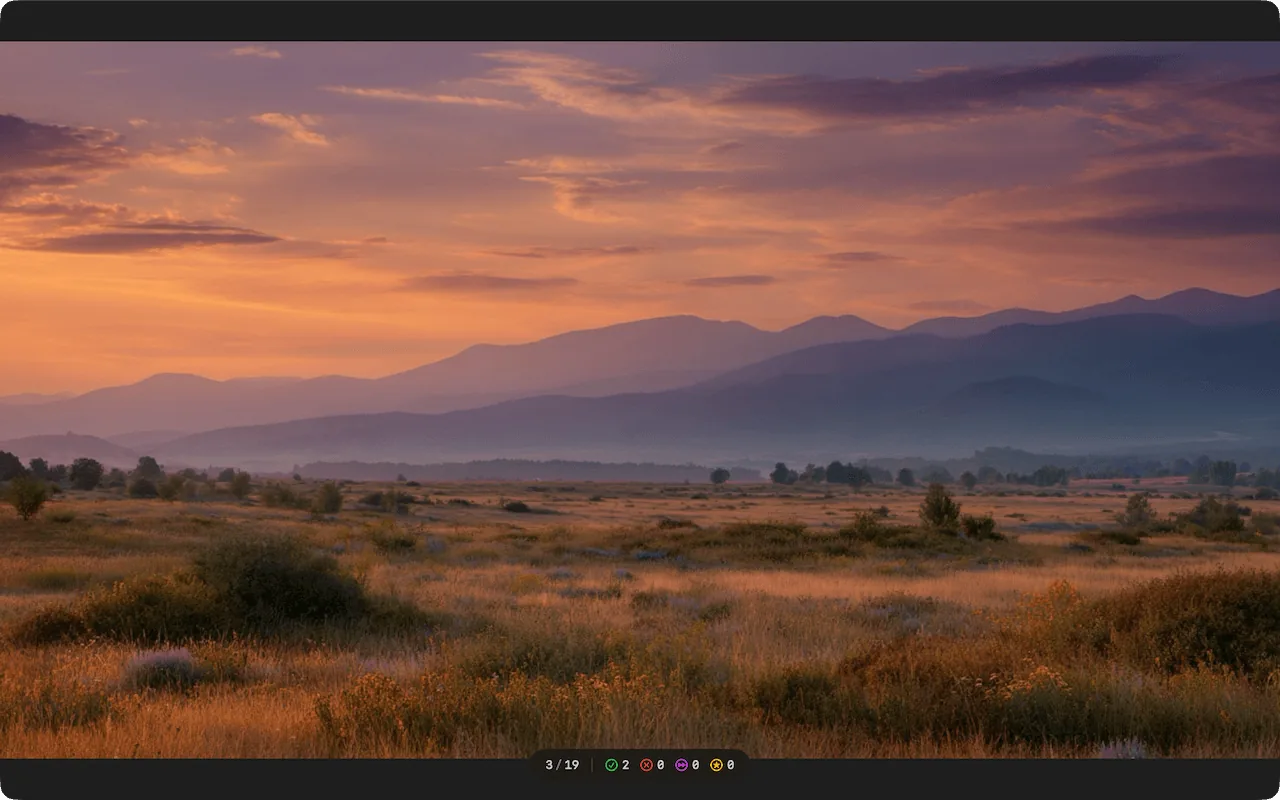
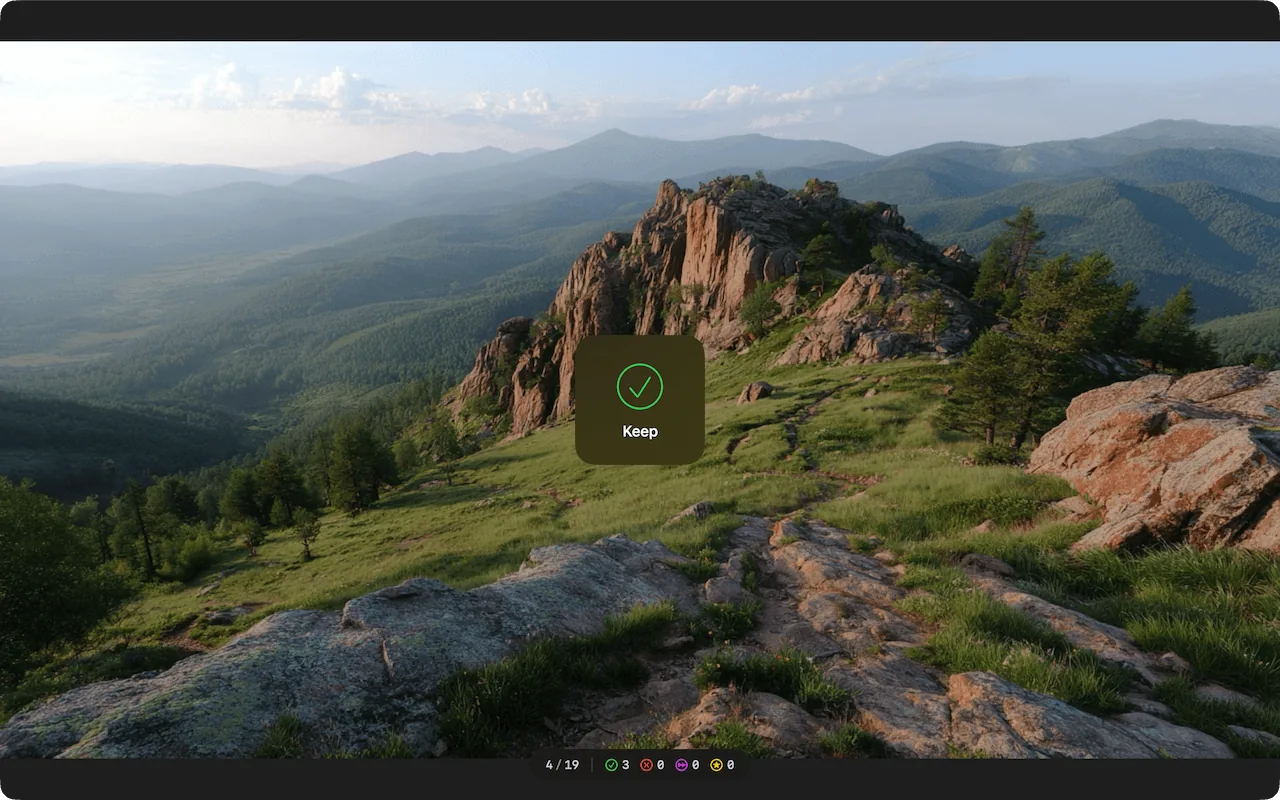
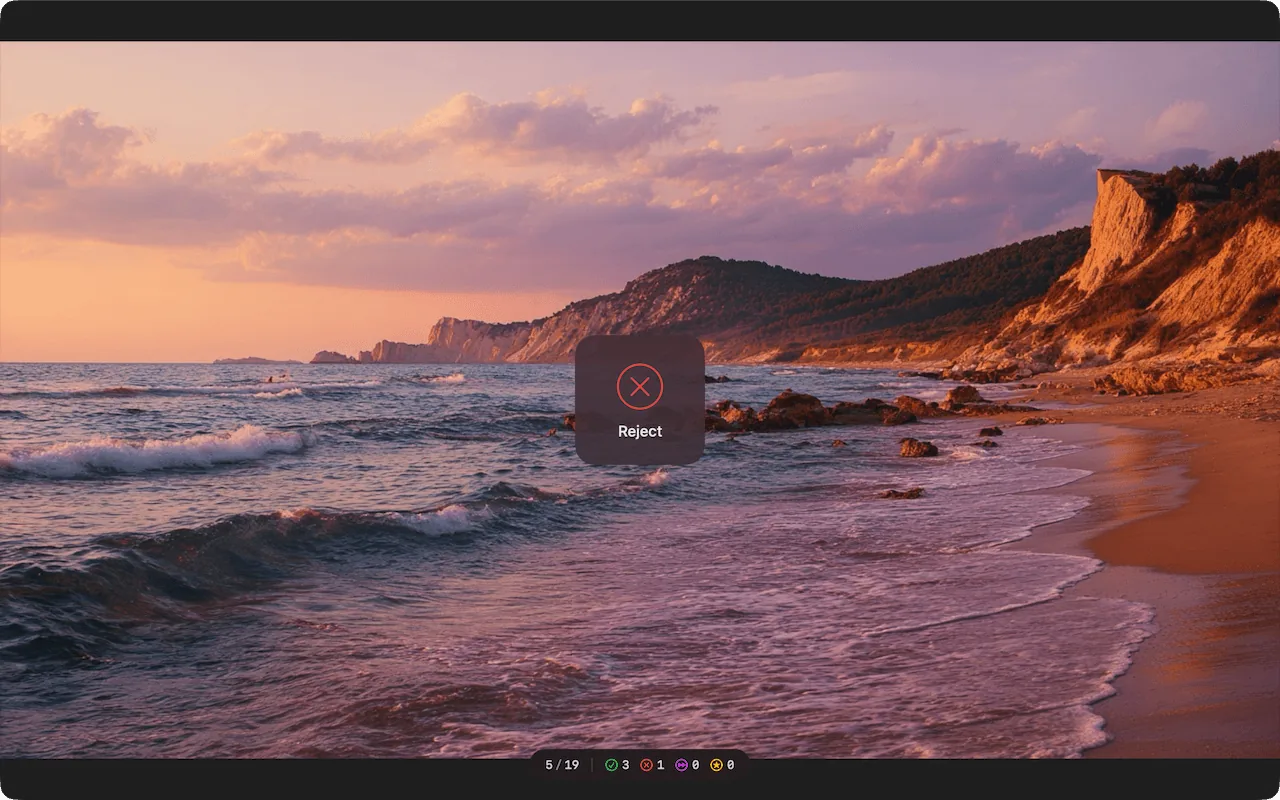
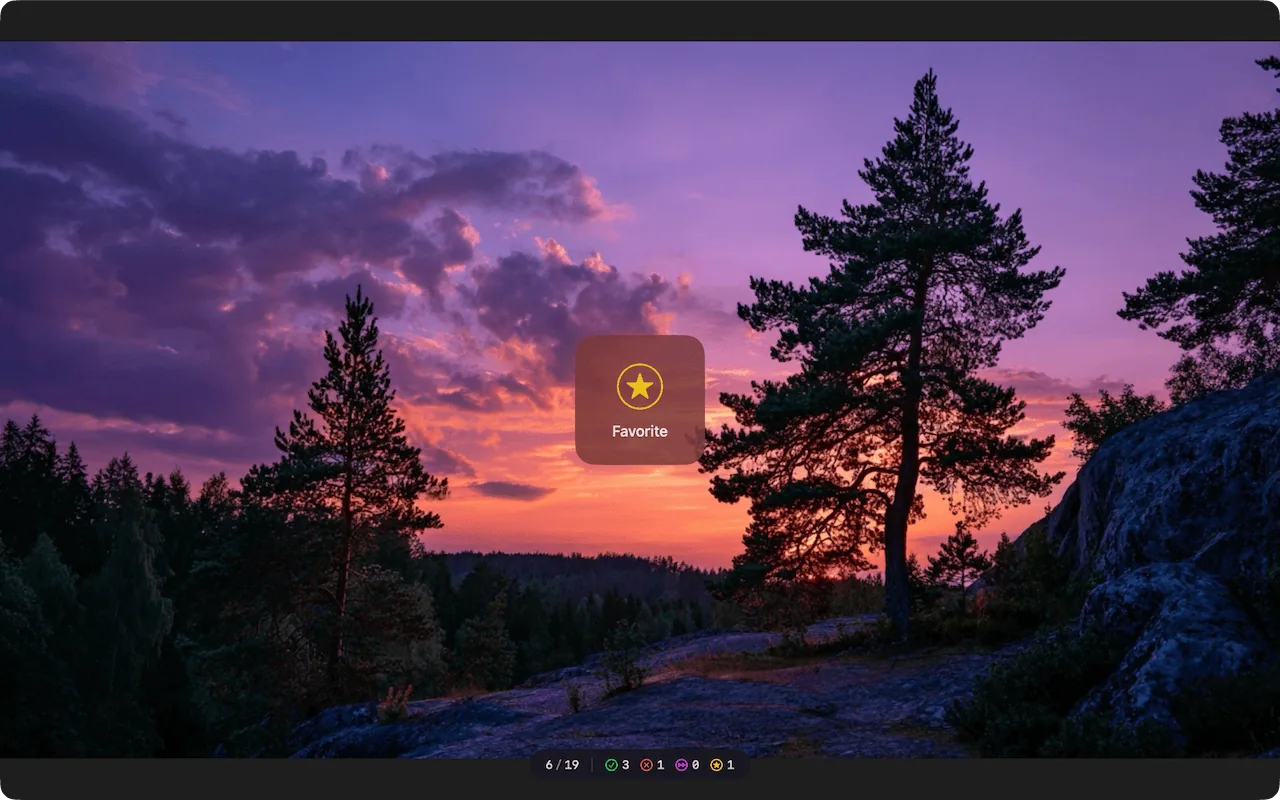
Keep, Reject, Skip or Favorite – one keystroke is all it takes. Instant advance without confirmation. Undo anytime.

Instant image display thanks to intelligent preloading. Optimized for large RAW sets. No waiting.

Review images in fullscreen. No menus, no distractions. Stay in the flow.
Everything you need for fast photo selection – nothing that slows you down.
Keep / Reject / Skip / Favorite with a single keystroke. Instant advance. Undo anytime.
Instant display even with large RAW files. Intelligent preloading in the background.
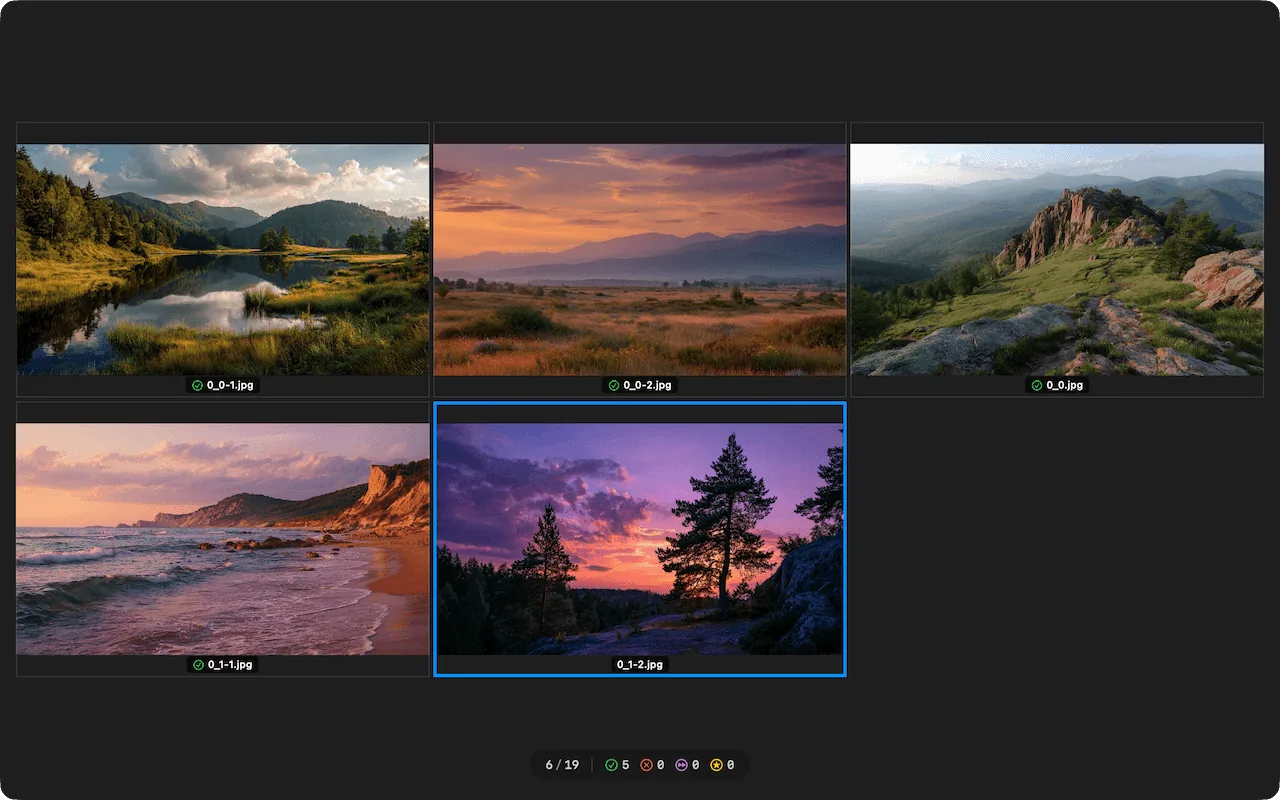
Compare multiple images side by side with a keystroke. Ideal for series and similar shots.

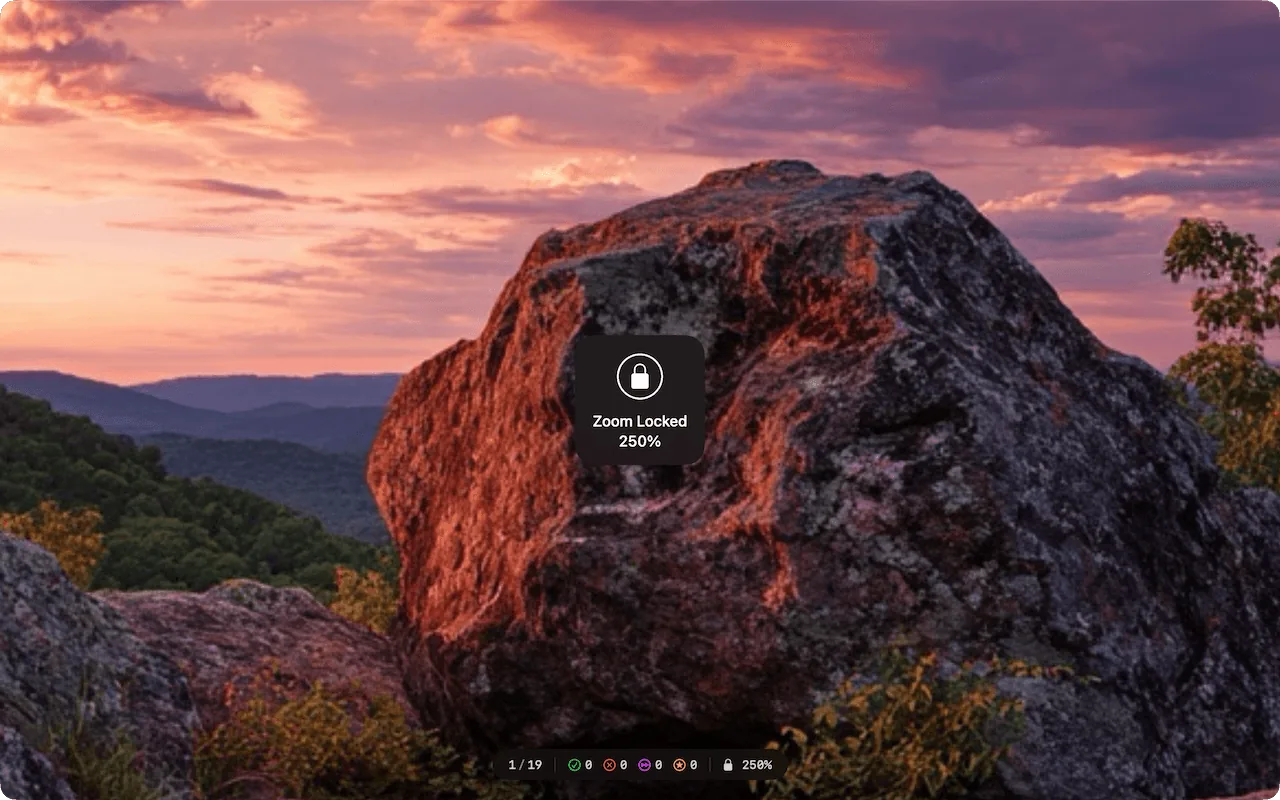
Quick zooming via keyboard or trackpad. Zoom Lock for consistent detail checking across multiple images.

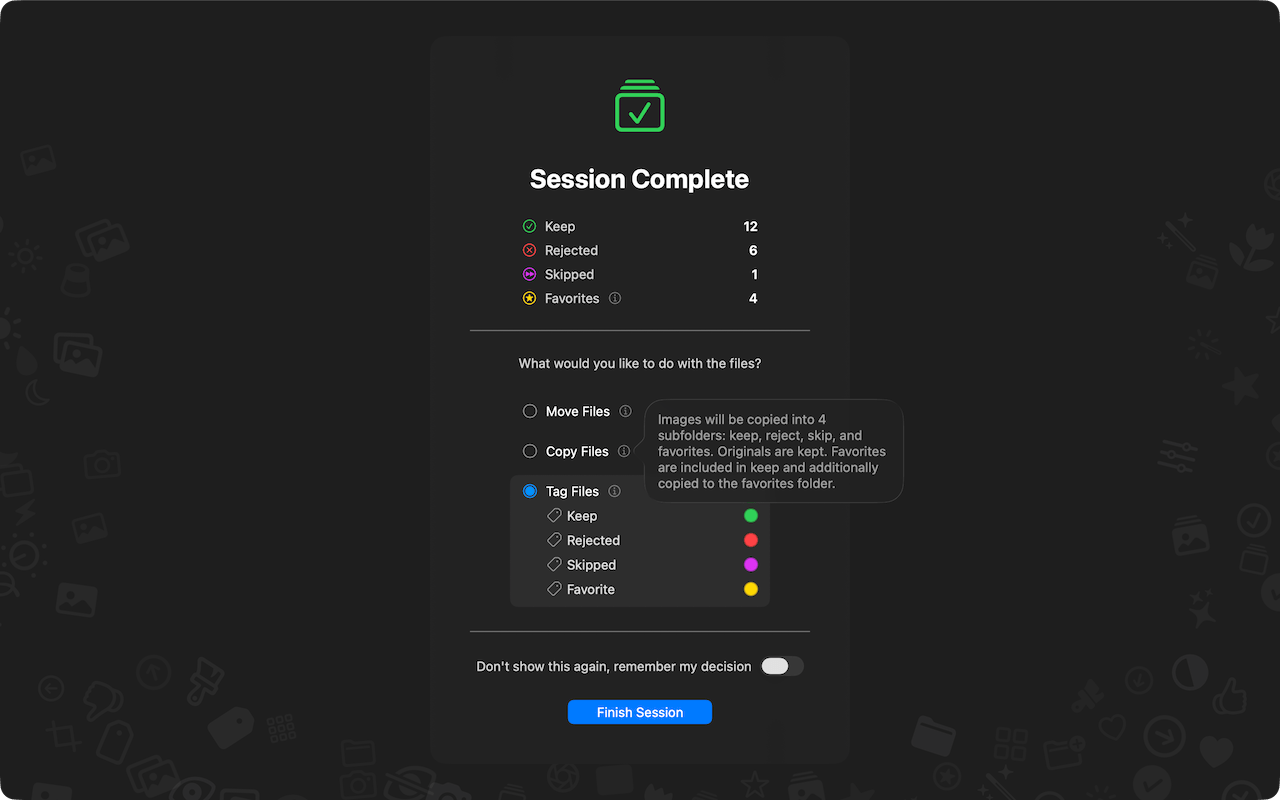
Sort selection into folders (Keep, Rejected, Skipped, Favorites). Move or copy files.

Optionally work with macOS Finder Tags instead of moving files.

Review images in fullscreen. No menus, no distractions, no clutter.

No database, no import. You work directly with your files.
From hundreds of images to your final selection in just a few steps.
The selection dialog opens automatically on launch. You can also drag a folder onto the app icon or into the window. No library, no import – you work directly with your files.
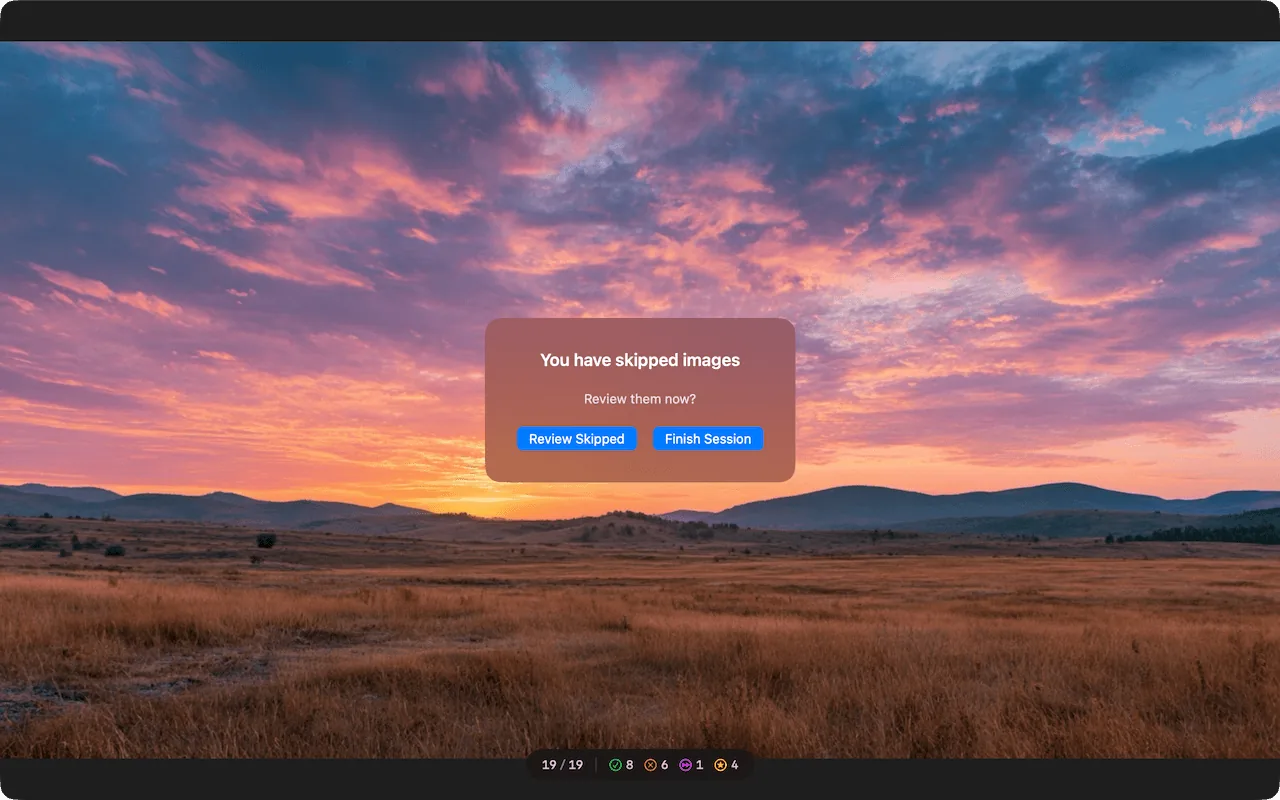
Go through images one by one and rate with a keystroke:
All shortcuts can be customized individually in the settings.
Hold C or Space to open a comparison view of the most recently kept images. Use number keys to set how many images are shown in the grid.
Zoom in via pinch gesture or keyboard (⌘+ / ⌘-). With Zoom Lock (L) the zoom level and position are preserved when advancing – ideal for consistent detail checking across multiple images.
When all images are rated, you'll see an overview with the number of Keep, Rejected, Skipped and Favorite images. Then choose what to do with the files:
Over 60 file formats, from standard images to professional RAW formats.
Two apps, one workflow: pre-selection with Phiewer Select, management and viewing in Phiewer PRO.
Phiewer Select – Quickly review images and select the best ones.
Phiewer PRO – Manage selected images and view them e.g. in Exposé or a slideshow.
Phiewer Select focuses on the essentials: selecting the best images.
Requires macOS 15.0 or later.