
Rotate with the Option Key, Now in Both Directions
One click in QuickEdit rotates the image 90° clockwise. Starting with Phiewer 7.1, holding the Option key turns it the other way.
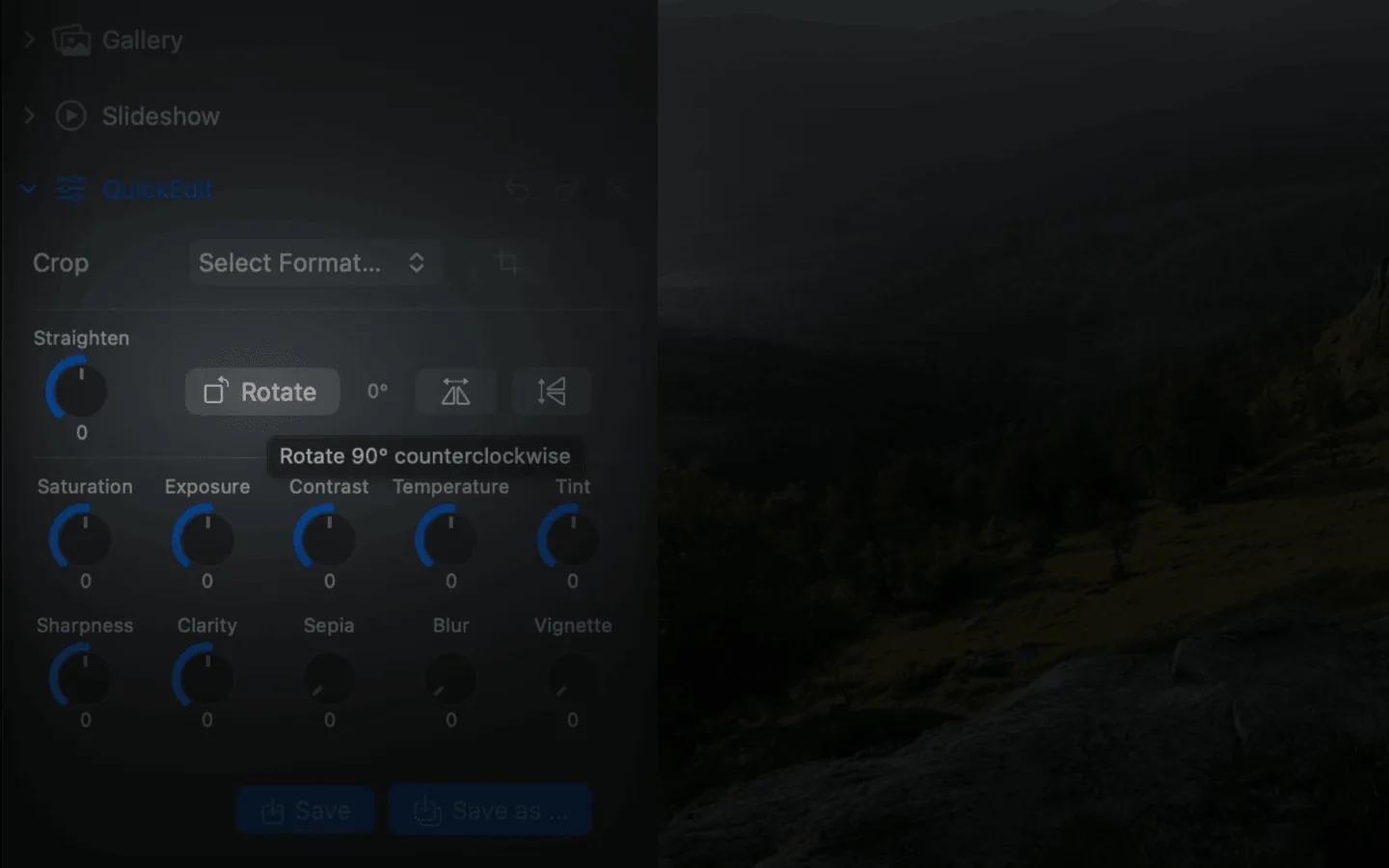
The Rotate button in QuickEdit with the Option key held down
Everyone knows portrait photos that show up sideways in a folder. Until now, the Rotate button in QuickEdit always turned clockwise. If an image was tipped the wrong way, that meant clicking three times until it finally stood upright. No big deal for a single image, but annoying for a whole shoot full of portrait shots.
Phiewer 7.1 adopts a principle many people know from the Preview app on macOS: hold down the Option key and the button rotates in the opposite direction. This request also came straight from your feedback.
Where to find it
The Rotate button sits in QuickEdit in the sidebar, in one row with the Straighten slider and the flip buttons. Right next to it, Phiewer shows the current rotation in degrees: 0°, 90°, 180° or 270°.
How rotating with the Option key works
- • Click rotates right. A normal click rotates the image 90° clockwise, as before.
- • Option rotates left. Hold down the Option key (⌥) and the same click rotates the image 90° counterclockwise.
- • The button shows the direction. As soon as you press Option, the button's icon and tooltip switch to rotating left. So you can see what will happen before you click.
A portrait shot tipped the wrong way is upright again after a single click, no matter which way it was lying.
Straighten, flip and save
Rotating in 90° steps is only one part of QuickEdit. Crooked horizons can be leveled smoothly with the Straighten slider by up to 15° in either direction. Two more buttons flip the image horizontally or vertically. On top of that you get cropping with composition guides and sliders for exposure, contrast, saturation and more. Every step can be undone with ⌥⌘Z.
You save with “Save” (⌘S), which overwrites the original, or with “Save as …” as a new file. RAW files are saved as a new JPG. With Phiewer 7.1, the thumbnail also updates right after saving, where previously it sometimes still showed the old orientation.
Familiar from the Preview app
If you have been working on a Mac for a while, the Option key is already in your muscle memory. Phiewer behaves exactly the way you expect from macOS and saves you two clicks for every wrongly rotated image.
Update now
Rotating with the Option key is part of Phiewer 7.1 and is available as a free update for all Phiewer users on the Mac App Store. The free version (lite) includes the full image viewer, but not saving QuickEdit changes.