
Multiple Selection with a Single Click
The new optional selection mode in Phiewer 7.1: one click selects, a double-click opens. Select multiple images without holding down the Cmd key.
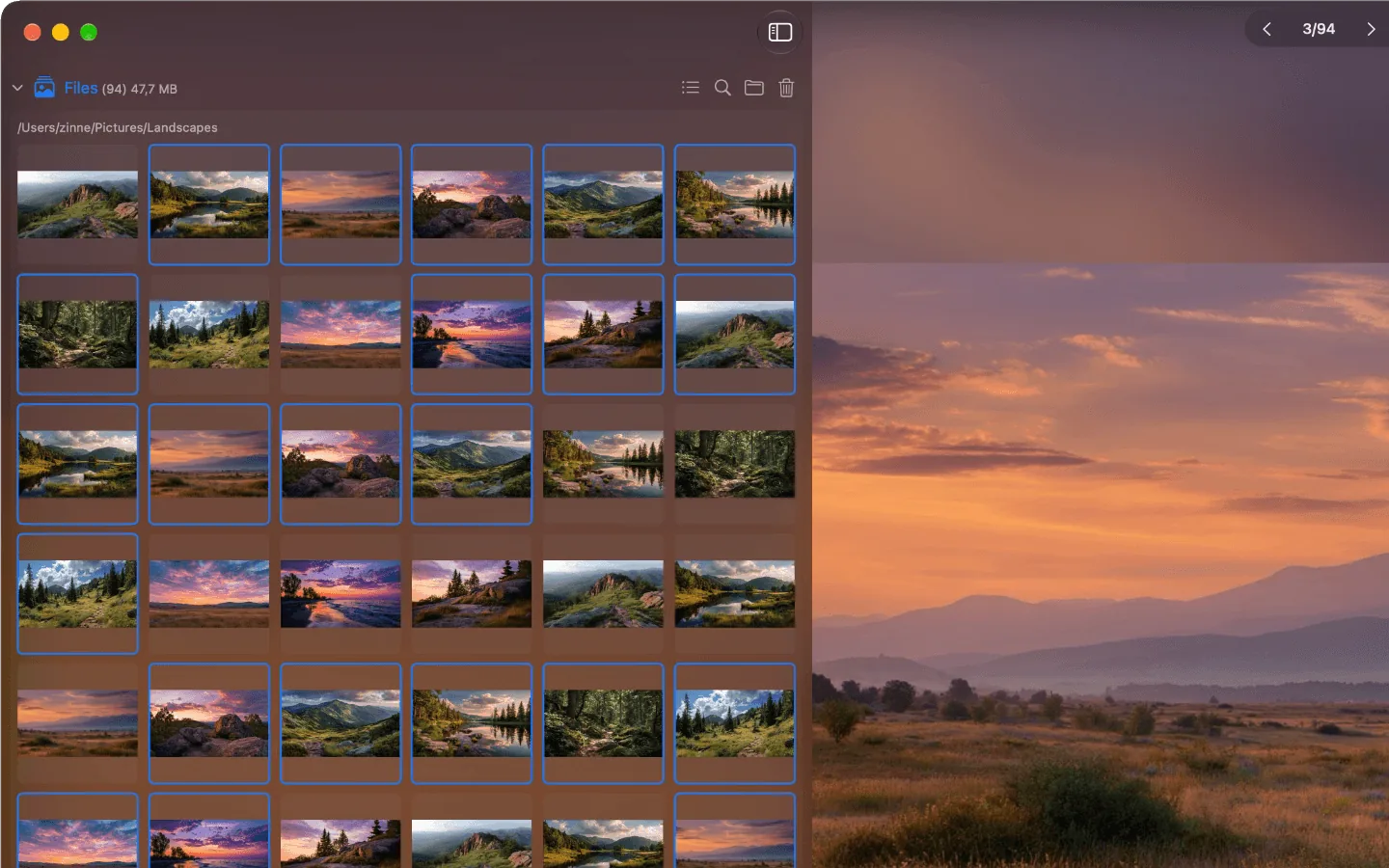
Multiple images in the Phiewer gallery view, selected with a single click
Anyone who has tried to select hundreds of images in a large folder to delete them or move them to another folder knows the drill: hold Cmd, click, scroll, Cmd again, click again. If your finger slips off the key after the two hundredth image, the whole selection is gone and you start over.
Phiewer 7.1 adds a new, optional selection mode for exactly that. When it is on, a simple click adds an image to the selection, and a double-click opens it. The request came straight from your feedback, thank you for that!
Turn it on in Settings, in the menu or with a shortcut
You will find the switch “Multiple selection with a single click” in Settings under Control, in the Navigation section. Alternatively, toggle the mode in the main menu under Control, or quickly with the shortcut ⌥⌘A. Like every shortcut in Phiewer, it can be reassigned freely in Settings.
The mode applies wherever you select files: in the thumbnail view in the sidebar, in the folder view and in all gallery views. So you do not have to adjust depending on which view you are working in.
How the single-click selection mode works
In the new mode, every click behaves as if you were holding down the Cmd key:
- • Click selects. Clicking an image adds it to the selection, and the images already selected stay selected.
- • Click again to deselect. A second click on a selected image removes it from the selection.
- • Double-click opens. You open images and folders with a double-click. An existing multiple selection stays intact.
- • Shift-click selects ranges. Hold Shift as usual to select every image between two clicks at once.
- • Off by default. The mode is optional. If you like the previous behavior, nothing changes for you with this update.
Especially when sorting through large folders, this is far more relaxed. Your hand stays on the mouse or trackpad, and the selection grows click by click, without a single wrong click resetting everything.
What you can do with the selection
A multiple selection is only as good as what you do with it afterwards. In Phiewer, the key actions apply directly to all selected files: add tags and comments, export, copy and move to another folder via drag and drop, or delete them all at once. And with the new compare view in Phiewer 7.1, you can place exactly the selected images side by side at full size.
Small, but noticeable every day
If you regularly cull photos or clean up large folders, you click hundreds of times a day. The single-click selection mode turns that into a calm, steady workflow, with no finger acrobatics on the keyboard.
Update now
The single-click selection mode is part of Phiewer 7.1 and is available as a free update for all Phiewer users on the Mac App Store.