
The New Compare View
Hold down the C key and several images appear side by side at full size. Let go, and you are back.
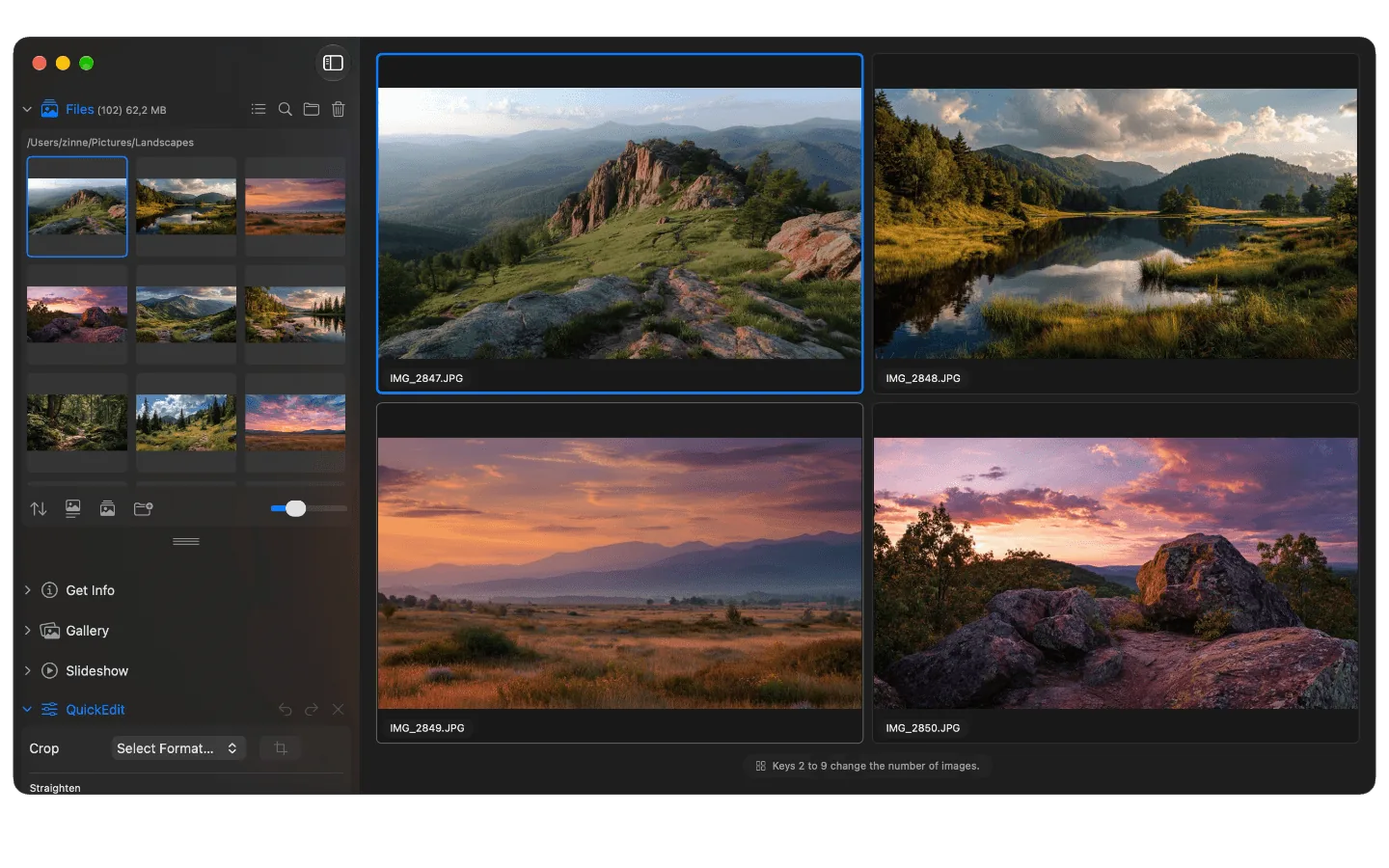
The compare view in Phiewer with four images side by side
Five almost identical shots of the same subject, and you want to keep the best one. So you flip back and forth, forward and back, trying to remember where the eyes were open and where the focus was sharp. By the third image at the latest, you no longer remember what the first one looked like.
With the new compare view, you simply see such images side by side, large and at the same time. One key press is all it takes.
How to open the compare view
Hold down the C key. As long as you hold it, Phiewer shows several images side by side at full size. When you let go of the key, you are instantly back in the normal view.
If you want to keep the compare view open longer without holding the key, choose “Compare” in the main menu under Control. You then close it with Escape or a click on an image. The C key can be reassigned freely in Settings under Shortcuts.
Which images are compared
Phiewer uses your selection to decide which images end up in the compare view:
- • One image selected. Phiewer shows the current image and the following images from the folder, as many as you have set.
- • Several images selected. Then exactly these images are compared. With multiple selection with a single click you select them especially quickly.
- • From any view. The compare view works in the normal image view, in the gallery views and in the folder view.
How many images at once
You can compare 2 to 9 images at the same time. The quickest way to change the number is right during the comparison: just press one of the keys 2 to 9 while holding down the C key, and Phiewer instantly shows that many images. You set your default number in Settings under Control or in the main menu under Control at “Images to Compare”.
The layout automatically adapts to the size of your window, so every image appears as large as possible. Once you have decided, simply click the image you like best. Phiewer closes the compare view and shows exactly that image.
Find the best shot
Burst shots, portraits, product photos: wherever you want to pick the best of several similar shots, the compare view saves you the constant flipping back and forth. You see the differences immediately instead of having to remember them.
Update now
The new compare view is part of Phiewer 7.1 and is available as a free update for all Phiewer users on the Mac App Store. The free version (lite) includes the full image viewer, but not the compare view.