
Random Slideshow Across All Subfolders
Thousands of photos from lots of folders, shuffled into one slideshow. Every image has the same chance of coming up.
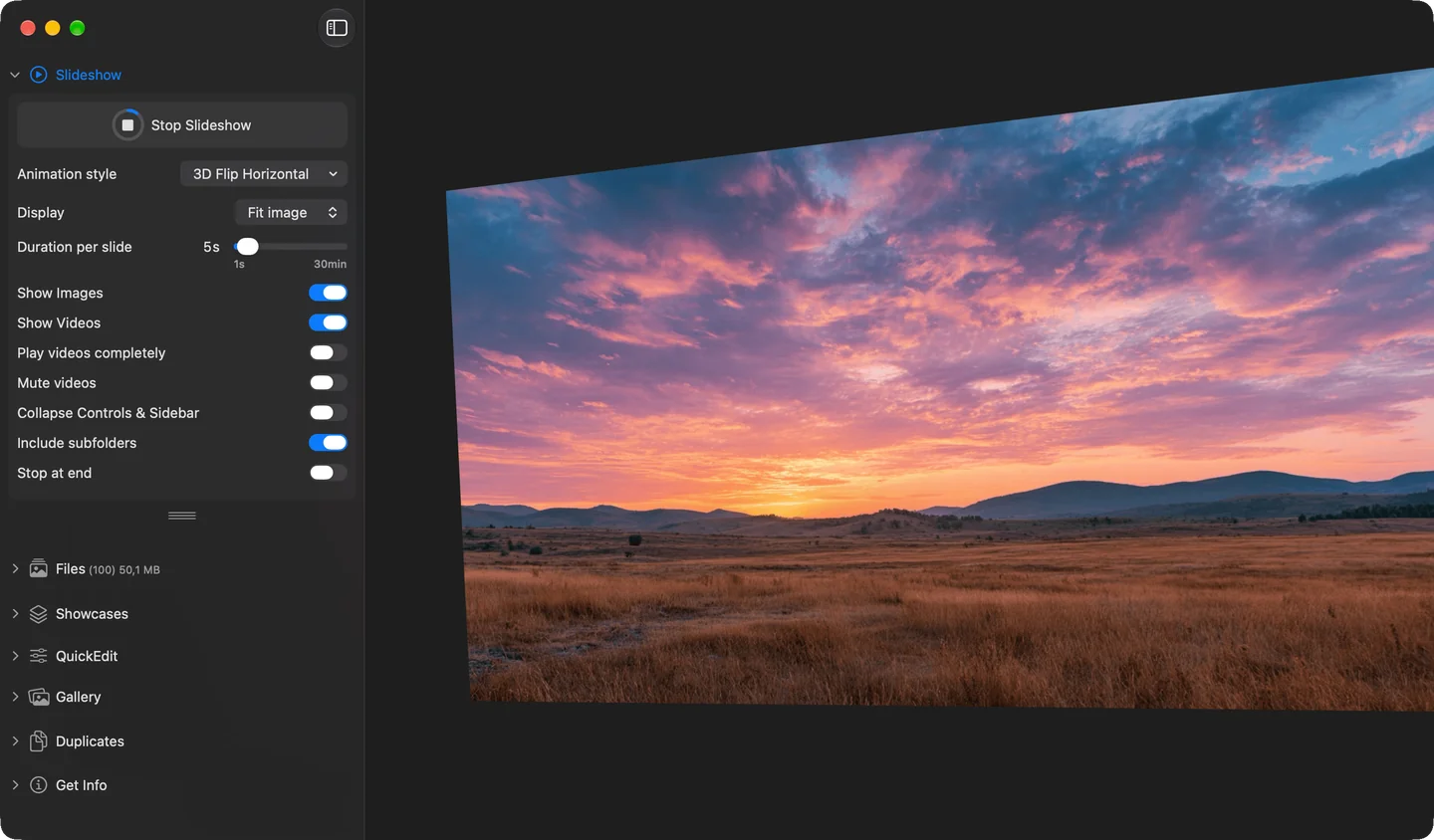
The slideshow settings in the Phiewer sidebar
Your photos are neatly sorted into folders, by year, trip or occasion. But for an evening with the family or as a digital photo frame, you want the exact opposite: everything shuffled, across all the years.
Until now, Phiewer played them folder by folder too. First twenty pictures from the 2019 vacation, then twenty from the 2021 birthday. Not really shuffled.
With Phiewer 8 the slideshow mixes all images from all subfolders together. Every image is equally likely, no matter which folder it's in.
How to turn it on
You need two settings:
- • “Random” sorting. At the bottom of the Files section, open the sort menu and choose “Random”. Since Phiewer 8 every folder remembers its own sorting, so set it in the folder you want to run the slideshow from.
- • “Include subfolders”. In the Slideshow section of the sidebar, turn on “Include subfolders”.
Then open the top folder, for example “Photos”, and click “Start Slideshow”. Phiewer gathers all images from all subfolders and shuffles them into one single list.
Truly shuffled instead of folder by folder
- • Every image is equally likely, whether it's in a big folder or a small one.
- • When the slideshow moves into another folder, it no longer jumps to that folder's first image.
- • After you stop, you're back in the folder where you started the slideshow.
Settings for a photo frame
In the Slideshow section you decide what the slideshow looks like:
- • Duration per slide sets how long each image stays on screen.
- • Animation style ranges from Crossfade to “Zoom & Pan”, where the images slowly glide across the screen. With “Random” the effect changes with every image, too.
- • Show Videos brings your videos into the slideshow as well, muted or at full length if you like.
- • Collapse Controls & Sidebar hides the controls and the sidebar while the slideshow is running.
- • Stop at end: turn it off and the slideshow loops forever.
In full screen on a second display or on your TV, your Mac becomes a digital photo frame. If the slideshow runs in a window, Theater Mode dims everything around it.
Tip: a slideshow from a Showcase
You don't want all your photos, just the best ones? Collect them in a Showcase. You can sort randomly there too and start the slideshow, no matter how many folders and drives the images come from.
Also works with “Show Subfolder Contents”
If you've turned on “Show Subfolder Contents” in the Files section, you already see all images from the subfolders at once. The slideshow then simply plays everything you see, and you don't need the “Include subfolders” switch in the Slideshow section.
Update now
The random slideshow across all subfolders is part of Phiewer 8 and is available as a free update for all Phiewer users on the Mac App Store. The free version (lite) includes the full image viewer and a slideshow, but not subfolders, “Random” sorting and all animations.