
Photo Albums Without the Photos App
With Showcases you put together images from any folder and drive into one collection. The files stay where they are.
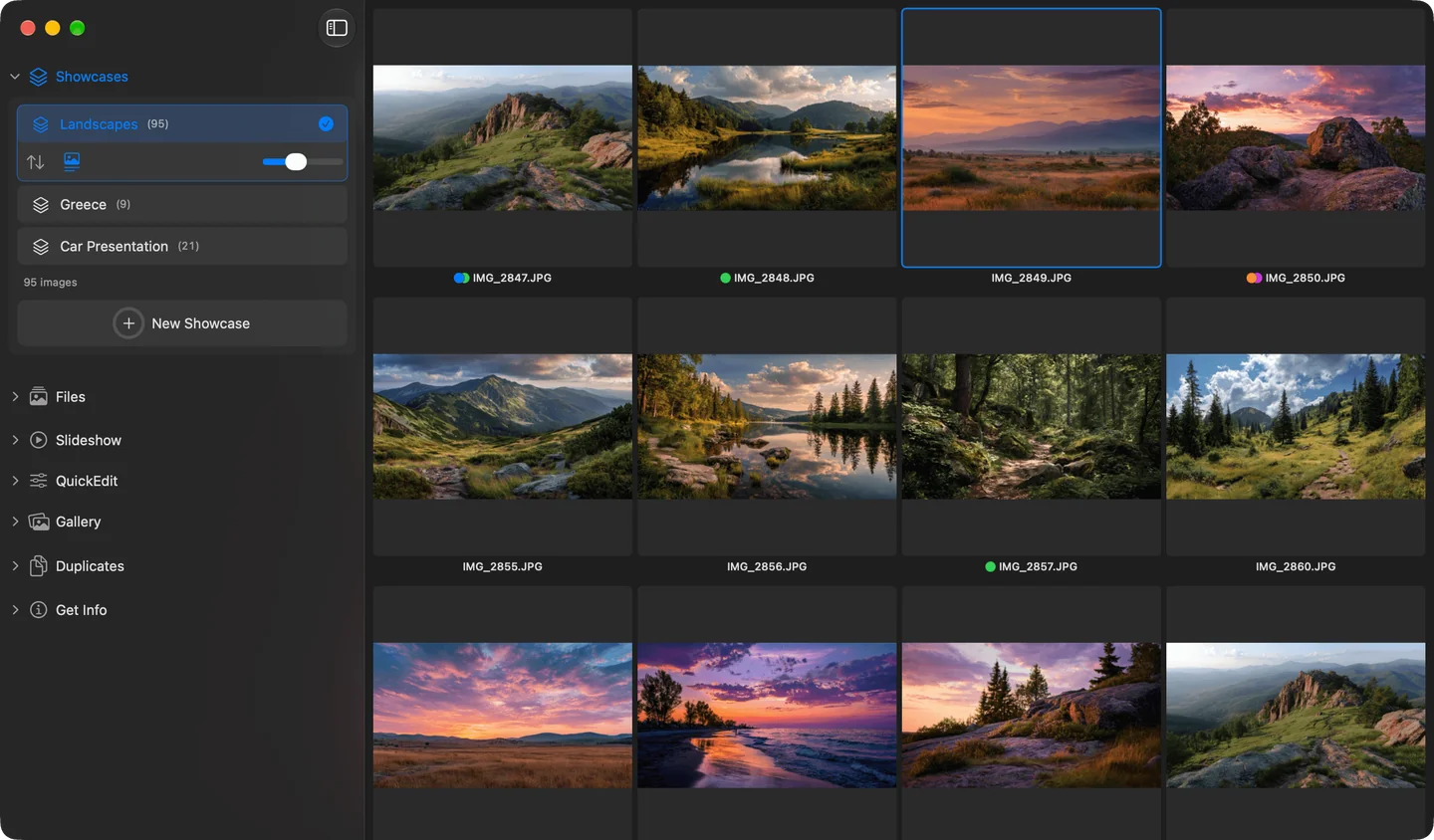
A Showcase in Phiewer: images from different folders in one collection
You want the best shots from your last trip in one place. A few are in the Downloads folder, the RAWs are on the external drive, the rest is somewhere on the desktop. Until now you had two options: import everything into the Photos app or copy the images into a new folder. Either way you end up with duplicate files or a library you don't really want.
Phiewer 8 adds Showcases for exactly this. A Showcase is like an album or a playlist for your images. You put images in, but the files stay where they are. Nothing on your disk gets copied or moved.
Where to find Showcases
There is a new Showcases section in the sidebar. At the bottom of it, click “New Showcase” and give it a name. You'll also find all your Showcases in the main menu under Showcases.
Adding images
There are three ways to get images into a Showcase:
- • Right-click. Select images, right-click, choose “Add to Showcase” and pick the Showcase. You can create a new one right there, too.
- • Drag and drop. Drag images onto a Showcase in the sidebar, even straight from Finder. Drop a whole folder and all its images come along.
- • Keyboard shortcut. ⇧⌘A puts the selected images into the Showcase you used last. That way you collect along the way while browsing.
The images can come from any folder and any drive, including external drives. Videos work, too.
You decide the order
One click in the sidebar opens the Showcase, and the images appear as tiles in the content area. You set the order yourself: just drag images to where you want them, several at once if you like.
You can also sort automatically, by name, date, size, type or randomly, and then fine-tune with drag and drop. If something goes wrong, ⌘Z undoes it.
Everything works like in a regular folder
Full screen, slideshow, compare view, the gallery views, QuickEdit, tags and comments: everything you know from regular folders works in a Showcase. If you edit an image with QuickEdit, you change the original. The Showcase simply keeps pointing to it.
Save a search as a Showcase
Say you search for the tag “vacation” and get matches from dozens of folders. Next to the search field you'll then see “Save as Showcase”. Click, adjust the name, for example “New Zealand trip”, done.
It saves the matches from that moment. Images you tag later aren't added automatically, you just add them yourself.
Your files are safe
Deleting in a Showcase only removes the entry, never the file. Even if you delete a whole Showcase, all images stay on your disk unchanged.
If you rename an image in Finder or move it to another folder, Phiewer still finds it. If an external drive isn't connected right now, its images appear grayed out. Plug it back in and they're back to normal.
Why not just use the Photos app?
The Photos app imports your images into its library. With Showcases your folders stay the way they are, and nothing ends up on your disk twice. It works just the same with RAW files and images on external drives.
Update now
Showcases are part of Phiewer 8 and are available as a free update for all Phiewer users on the Mac App Store. The free version (lite) includes the full image viewer, but not Showcases.