
Every image from every subfolder in one view
The new option in Phiewer 7 gathers the entire contents of a folder structure into the current file view and thumbnail view. No more clicking through level after level.
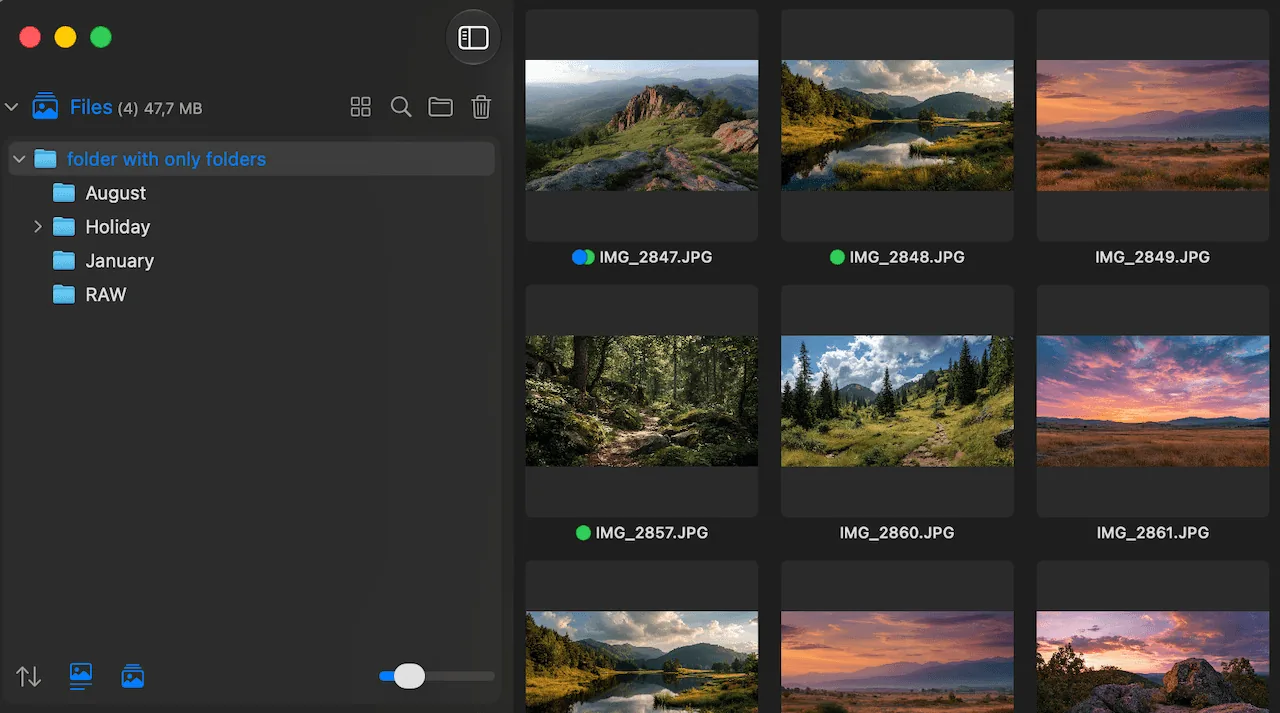
Phiewer 7 shows every image from all subfolders in a single thumbnail view.
Photos almost never live in a single folder on a Mac. A shoot is split by day, a holiday by location, an archive by year and month. The moment you look for one particular image, or simply want to skim everything you have, the clicking starts: open folder, look at images, close folder, next folder.
Phiewer 7 adds a small but very practical option for exactly that. On request, the viewer shows every image from all subfolders directly in the current view. One parent folder is enough and you see the whole contents as one continuous overview.
Why nested folders slow you down when reviewing
A clean folder structure is worth its weight in gold when archiving. When reviewing, it often gets in the way. Anyone who wants to know which shots from a week are actually usable has to open seven folders one after another and can barely keep track. Images from different days cannot be compared side by side, and repeats never even surface.
The usual answers are inconvenient. Either you import everything into a library and give up control over your files, or you copy the images into a review folder and clean up afterwards. Both cost time and disk space, and both change something about your storage that you never wanted to change.
How the new option works
You will find the switch on the left, below the thumbnail view. If you prefer working through menus, the same option sits in the main menu under Files. With it active, you pick a folder as usual, and Phiewer walks the entire structure below it and shows every image it finds in the same view that would otherwise hold only the top level.
- • One folder is enough. Everything below it appears automatically.
- • The thumbnail view stays a single continuous list, no matter how deeply the structure is nested.
- • Your folders on disk stay untouched. Nothing is copied, nothing is moved and nothing is imported.
- • One click back and you see only the current folder again. The option can be switched on and off at any time.
Sorting, rating, comparing and deleting work in this combined view exactly as they do everywhere else. The only difference is where the images come from.
What it is good for day to day
The feature sounds unremarkable, but it saves clicks every single day:
- • Shoots split by day: See the whole week at once and pick the best frames instead of working through one day at a time.
- • Memory cards and camera folders: The contents of a card are often spread across several directories. In the combined view that stops being an issue.
- • Going through archives: A year folder with twelve month folders becomes one overview you simply scroll through.
- • Cleaning up downloads and drop folders: Images scattered across many small subfolders finally show up together.
- • Spotting duplicate shots: What never sat side by side in separate folders is suddenly right next to each other.
It stays fast even with a lot of images
With all subfolders visible at once, the list obviously grows to several thousand images very quickly. Phiewer is built for that. Since the rebuild of the image list, the thumbnail view runs on a proven native macOS foundation and stays smooth even with very large folders. Previews load while you scroll rather than all at once.
On top of that comes the point that sets Phiewer apart from a photo library: there is no import. Phiewer reads straight from the file system, so a freshly assembled combined view is there immediately and does not have to be built or synced first.
Frequently asked questions
Does this move or copy my images?
No. The option only changes what is displayed. Every file stays exactly where it was, and your folder structure remains fully intact.
How deep does Phiewer go into the folder structure?
Through every level below the folder you picked. Images several steps further down appear in the view as well.
Can I turn the option off again?
At any time. As soon as you deactivate it, Phiewer shows only the contents of the current folder again.
Where do I find the option in Phiewer?
The switch sits on the left, below the thumbnail view. The same option is also available in the main menu under Files.
Which version includes this feature?
The option arrives with Phiewer 7. If you already use Phiewer, you get it automatically with the update.
Small, but noticeable every day
Not every new feature has to be big. This option saves a whole series of clicks every time you go through a nested folder structure, and it does so without changing anything about your files.
Conclusion
Phiewer remains an image viewer that works directly with your folders, with no library and no subscription. With version 7 you also decide for yourself whether you want to see a single folder or everything below it. One switch, two ways of looking at the same files.