
Sort Photos into Folders with Drag and Drop
Look at the image in full size, drag it onto the right folder, done. Just like in Finder, only with a big preview.
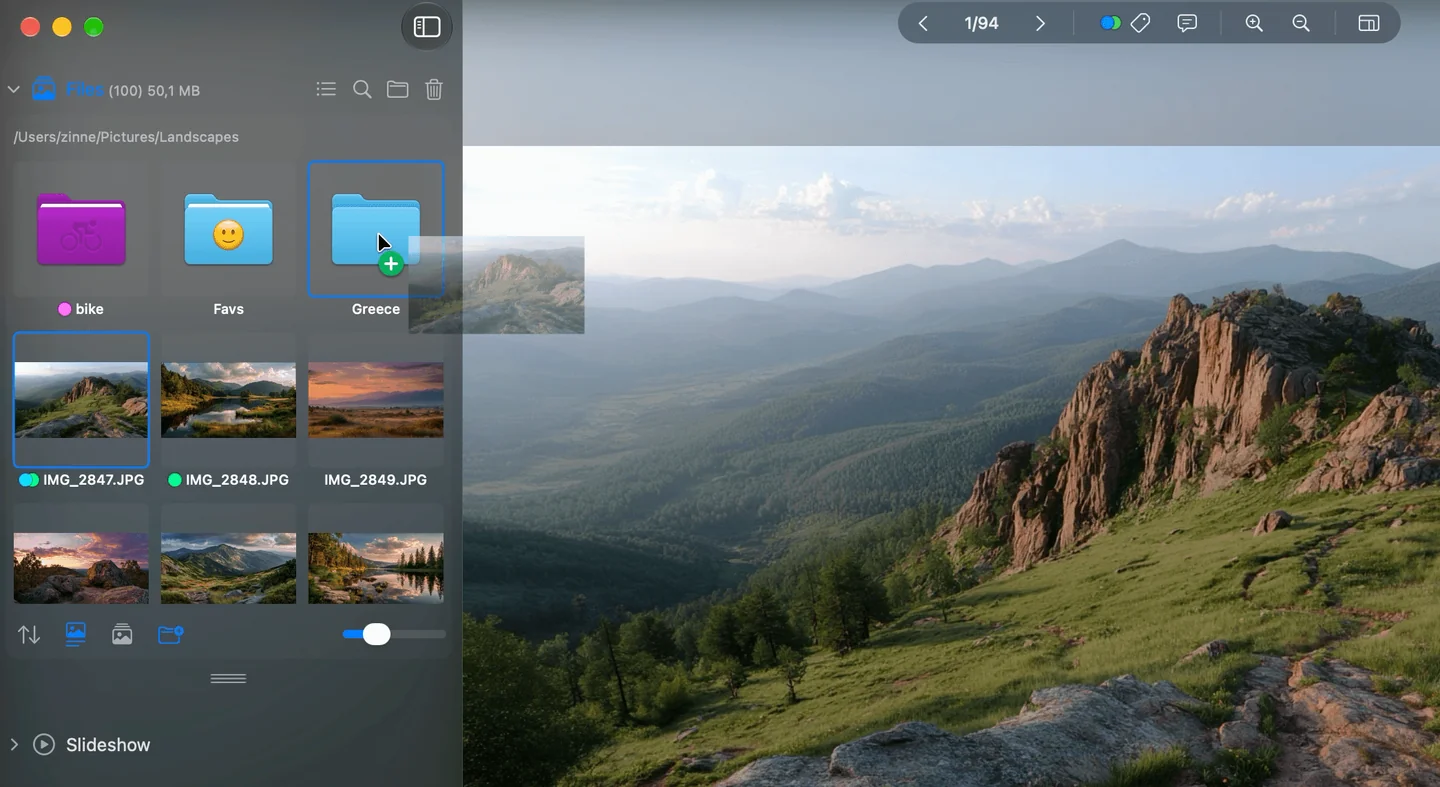
An image being dragged onto a folder in Phiewer
After your vacation, 800 photos sit in one folder. You want to split them up: beach, city, food, family. In Finder the thumbnails are too small to decide. So you keep switching back and forth between Preview and Finder.
With Phiewer 8 it all happens in one window: look at the image in full size, drag it onto the right folder, on to the next one. And dragging works exactly the way you know it from Finder.
Like in Finder: move, copy, alias
Phiewer follows the same rules as Finder:
- • On the same drive files are moved, to another drive they're copied.
- • Holding ⌥ (Option) always copies. A green plus appears next to the pointer.
- • ⌘ (Command) forces a move, even to another drive.
- • ⌘⌥ together creates an alias.
It works the other way round, too: drag images from Phiewer into Finder or onto the desktop and the same thing happens.
Drag from anywhere, drop anywhere
You can drag from any view: the thumbnail view, the folder view, the gallery views and even full screen. If you've selected several images, they all come along. With single-click multiple selection you select lots of them quickly.
You can drop onto any folder you see in Phiewer, in the thumbnail view and in the folder view, plus favorites and drives in the sidebar. The path bar with the back arrow lets you quickly push images up one level.
Folders open by themselves
Hold an image over a folder and it blinks briefly and opens. Then you drop it straight into a subfolder without letting go first. In Finder this is called spring-loading, and Phiewer uses the same delay you've set in System Settings.
Nothing gets lost
- • If the destination already has a file with the same name, Phiewer asks just like Finder: “Replace”, “Stop” or “Keep Both”. With several conflicts, “Apply to All” uses your choice for all of them.
- • Replaced files go to the Trash, so you can get them back.
- • ⌘Z undoes moving, copying and aliases, and replaced files come back too. ⇧⌘Z redoes it.
- • If you drop an image into the folder it came from, nothing happens.
Tip for large batches
Create the destination folders first and add them as favorites. Then they're always in the sidebar, and you drag each image to its place in one move. If you want to weed out the ones to delete first, Phiewer Select helps.
Update now
Finder-style drag and drop is part of Phiewer 8 and is available as a free update for all Phiewer users on the Mac App Store. The free version (lite) includes the full image viewer, but not the favorites in the sidebar.